 |
PFClean Documentation | Media Manager |
Colour Management
PFClean uses OpenColorIO for colour management. This affects how clips are displayed in the Cinema window (or on a reference display) to ensures accurate colour reproduction on your monitor, and can also be use to convert clips from one colour space to another when exporting if required.
In order to use OpenColorIO in PFClean, you must specify a colour space for your clips, and a colour space for your display. Colour conversion during export is optional and can be switch on or off in the File Out node.
Please note that PFClean does not support import of custom LUTs, other than through the OpenColorIO configuration files. If you wish to customize OpenColorIO behaviour to introduce additional colour transforms then please see the OpenColorIO documentation for further information.
Colour Transforms
After OpenColorIO has been configured, and a colour space is assigned to your clips and your display device, the Cinema window will display your clip data appropriately using a look up table (LUT).
Note that the actual pixel values of your clip will not be changed unless you want to perfom colour space conversion during export - the LUT only affects the visual display of the image data in the Cinema window. All restoration operations are performed in the original colour space of your source media.
In addition to OpenColorIO, PFClean also provides a Defect Display Booster that can be used to further modify the LUT in the Cinema display to help locate defects that would otherwise be difficult to see.
Configuration
OpenColorIO can be configured in the OpenColorIO Preferences window, which is opened by clicking the Preferences button  at the top-left of the PFClean interface.
Clips
A colour space can be assigned to each clip, specifying how colour information has been encoded in the image data. For example, after film scanning you may be importing a 10-bit DPX clip encoded with log density. In this case, you could assign the colour space for this clip as ADX-10 to tell PFClean how the pixel data is encoded.
You can specify a colour space for each clip individually (or in groups) in the Media Admin panel.
By default, clips are assigned a "Raw" colour space. This means that no information is available about how colours are encoded in the image pixel values. In this case, no colour conversion will be applied when displaying a clip in the Cinema window or when exporting clip data after it is cleaned.
Displays
Before PFClean can adjust how a clip is displayed in the Cinema, you need to specify a colour space for your display device. This is done in the OpenColorIO Preferences window.
You can also assign a separate colour space to any reference displays you may have attached to your workstation.
Export
When exporting, you can use OpenColorIO to convert from the colour space assigned to your source media clips to another space if you desire. This can be used after importing media from a variety of sources, for example, to ensure all exported data is encoded in a singular colour space.
The colour space used for export can be set in the File Out node.
Cinema
When OpenColorIO is enabled, the overlay in the Cinema window will indicate the colour space of the current clip, along with the colour space of the display device:
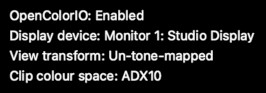
The transform from clip to display colour space can be disabled temporarily if required from the Defect Display Booster popup window.