 |
PFClean Documentation | Project Manager |
Disk Manager
Disk Manager Info | Managing project paths | Managing cache locationsThe Disk Manager section lets you manage project paths and cache locations.
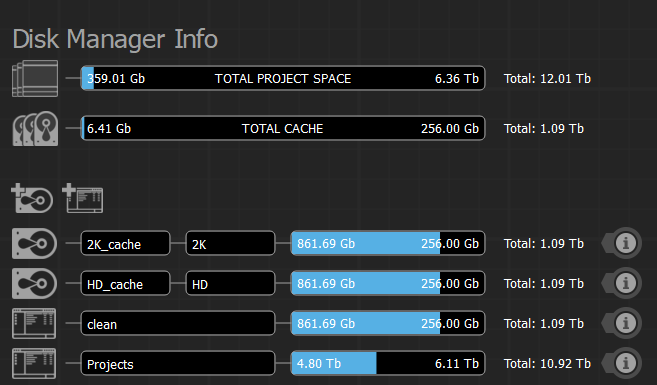
Disk Manager Info
The Disk Manager Info displays the total disk space used by the linked projects and cache.
Managing project paths
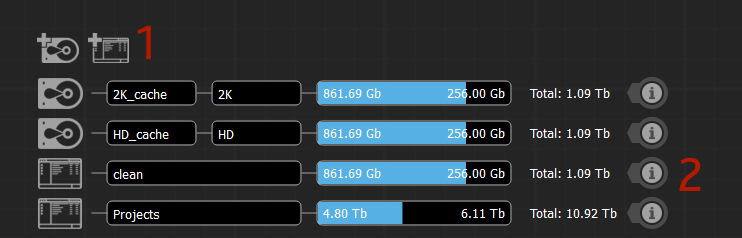
Project paths are locations on disk where new projects can be created. At least one project path must be defined before a new project can be created.
Adding a project path

New projects can be created in predefined project paths. New project paths can be added by clicking the Add a new project path (1) button to open a file browser and selecting the path. A new location will be added to the list and a name can be entered for the new path (3). The creation of the new project path can be confirmed by clicking the ✔ button (4), or aborted by clicking the ✖ button (5).
Removing a project paths
Only project paths that don't contain any linked projects can be removed from the list. Clicking a path's Show information on the project path (2) button will open the info panel, listing all linked projects located in that path. If no linked projects are located in the path, the Delete button is active to delete the project path. Note that removing a project path does not affect the physical data located in the path on disk.
Reference paths
Reference paths are project paths where linked projects are stored, but no new projects can be created in these locations. Reference paths are automatically created when a project is relinked from an undefined path.
Managing cache locations
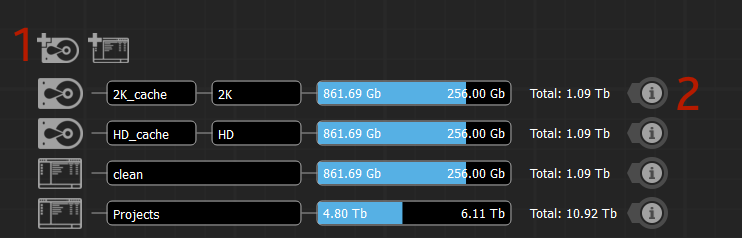
Workbench effects and effects stacks, Standard conversion nodes and the Digital Wet Gate allow for intermediary results to be cached to disk. The Disk Manager allows to manage the locations for these caches. Separate cache locations can be defined for SD, HD, 2K, 4K and Undefined standards, where Undefined is used for all standards that don't have a specific location set. Note that the same disk location can not be used in two entries.
Adding a cache location

Click the Add a new cache path button (1) to open a file browser and select the disk and directory where cached data will be written. A new location will be added to the list of cache and project paths. Change the name (3) if desired and select a standard format (4) for new cache location. The creation of the new location can be confirmed by clicking the ✔ button (5), or aborted by clicking the ✖ button (6).
Removing a cache location
Cache locations can be deleted by clicking the Show information on the cache path (2) button and clicking Delete in the cache's info panel.